Reports & Analytics
Review status and category totals, then download equipment or equipment activity for a selected date range.
Choose the question before the report
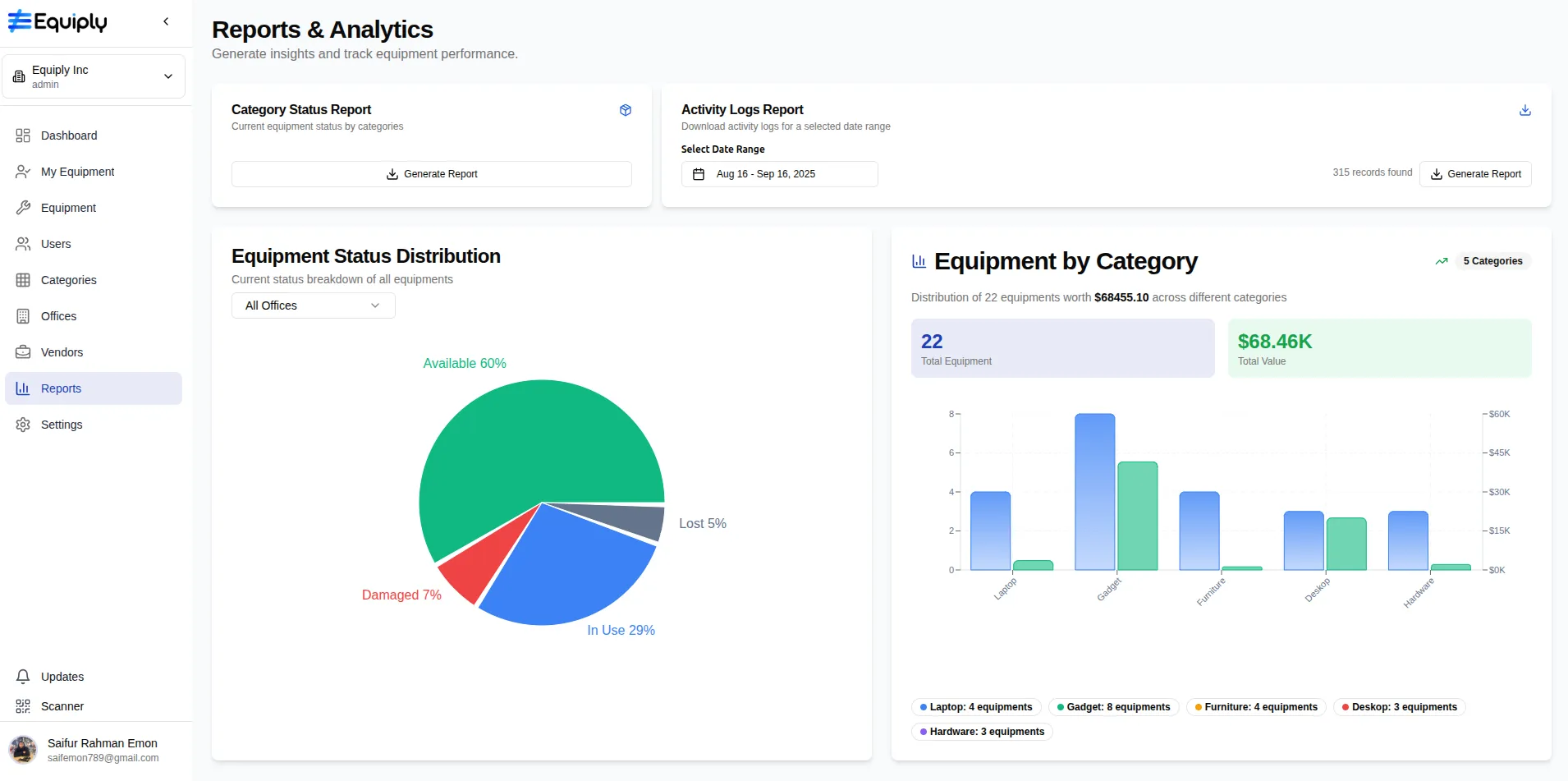
Open Reports to review equipment status and category views. Decide what you need to know: whether laptops are available, how equipment is distributed or what changed during a period.
Use the relevant office or equipment filters to keep the scope clear. Open the underlying item records before making a purchasing or replacement decision.
Export an equipment list
Open Equipment, apply the relevant filters and choose Export. Review the available export options and open the downloaded file in your spreadsheet tool.
Check which items and fields the file includes, the organization and the export date. Keep those details with the file if it will support a stock check.
Download activity for a reporting period
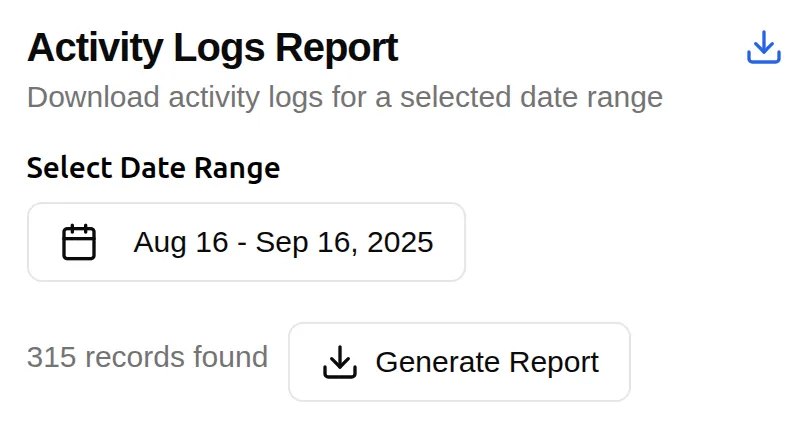
Open Reports and the Activity Logs Report. Select the date range, choose Generate Report and download the file.
Inspect the exported records and dates before sharing the file. The report reflects recorded activity; reconcile it with your team’s equipment check where required.
Was this article helpful?
Let us know if you found this guide useful or if you have suggestions for improvement.