User Management & Permissions
Invite team members, choose their role and check invitation status.
Invite a team member
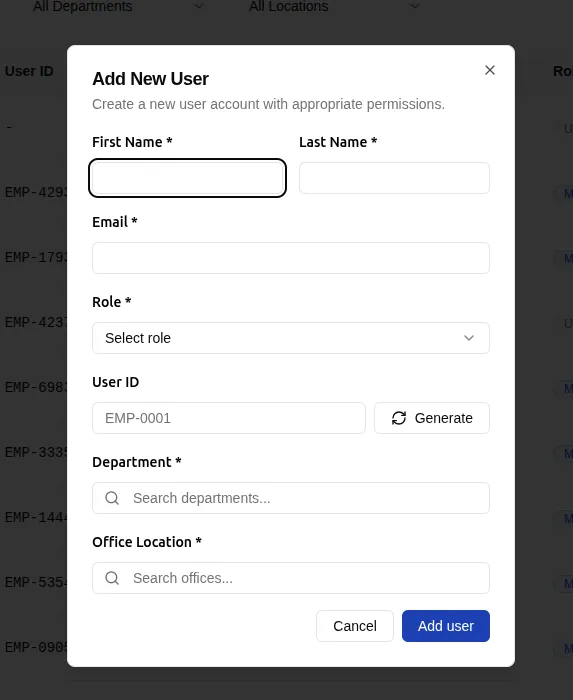
Open Users and choose Add User. Enter the person’s name and email, select the appropriate role and include office or department information where needed. Check the email address before sending the invitation.
Admins and managers can invite team members. Review the invitation status in Users. If the person has not received it, confirm the address and use Resend Invite from the available Actions menu.
Choose the role for the job
Admin: manages the organization, billing and administrative settings.
Manager: manages equipment and assignments and can invite team members. Billing and organization deletion remain admin tasks.
Employee: uses My Equipment to view and interact with their assigned items. This role does not manage the wider inventory.
Check access and assignments
Ask a new team member to accept the invitation and confirm they can open the expected view. Use their actual account when checking access; an admin’s screen shows broader permissions.
Review assigned equipment before a person leaves. Arrange and record returns before changing their account access. Check with the organization admin before removing an account.
Was this article helpful?
Let us know if you found this guide useful or if you have suggestions for improvement.